On this page
YouTube Subtitles Download - Multi-Language & Multiple Subtitle Formats
When watching YouTube videos, subtitles are invaluable for language learning, content comprehension, and creative repurposing. MeowLoad provides two convenient ways to download YouTube subtitles, supporting multiple languages and formats to suit different needs.
📥 Method 1: Desktop App Subtitle Download (Recommended for SRT)
Steps
-
Copy the video link: Find the video on YouTube whose subtitles you want to download, then copy the share link (e.g.,
https://youtu.be/Ah_uuTwGOYU) -
Open MeowLoad: Launch the MeowLoad desktop app and select the "Link Download" feature from the left-side menu
-
Paste the link and extract: Paste the YouTube link into the input field and click the green "Extract" button
-
Choose a subtitle language and download: If the video contains subtitles, subtitle download options will appear in the extraction results. Click the language dropdown on the right side of the subtitle row, select the language you need (e.g., Simplified Chinese, English, etc.), then click the download button
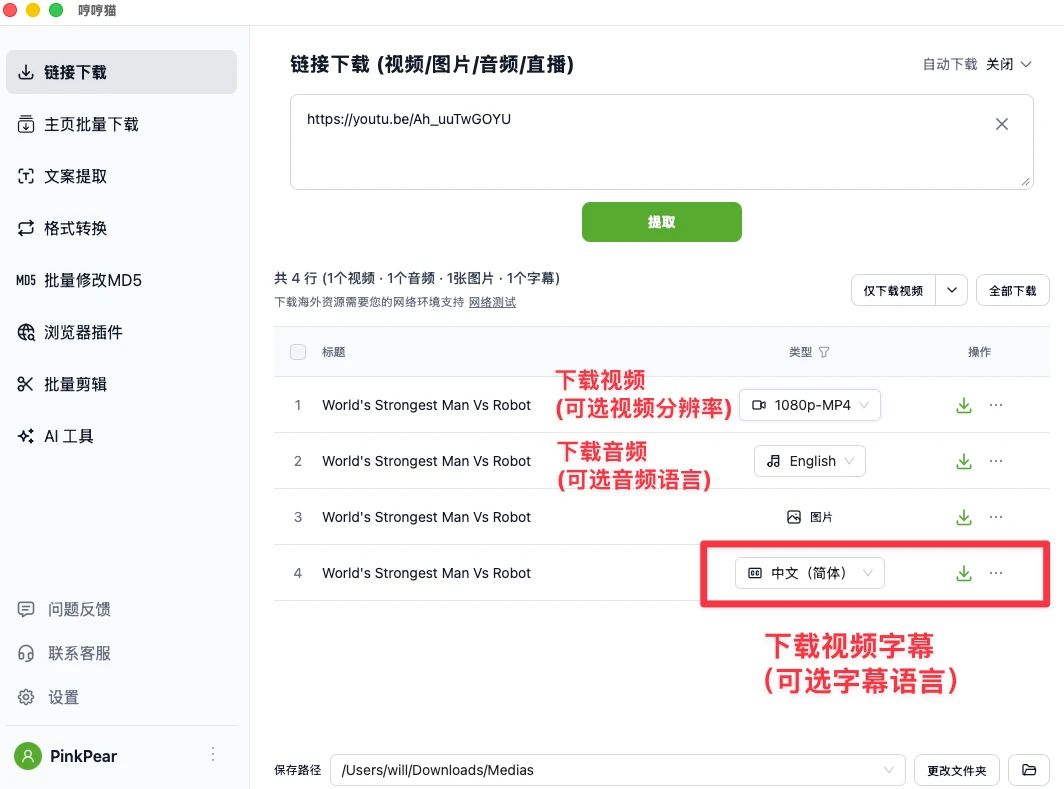
Method 1 Highlights
- Simple workflow: Follows the same process as downloading video, audio, and images — you can download video, audio, images, and subtitles all at once
- Default SRT format: Subtitles are downloaded in the universal SRT format, which offers the best compatibility
- Format limitation: Only SRT format is supported; for other formats, use Method 2
🌐 Method 2: Web Tool Subtitle Download (Multiple Formats)
Steps
-
Visit the web tool: Go to the MeowLoad web-based YouTube Video Subtitle Downloader
-
Paste the link and extract: Paste the YouTube video share link into the input field and click the "Extract Single Link" button
-
Select language and format: After successful extraction, the page will display all available subtitle languages for that video. Each language has a format dropdown menu on the right — click it to select your preferred subtitle format
-
Download the subtitles: Once you've chosen the language and format, click the download button to save the file to your device
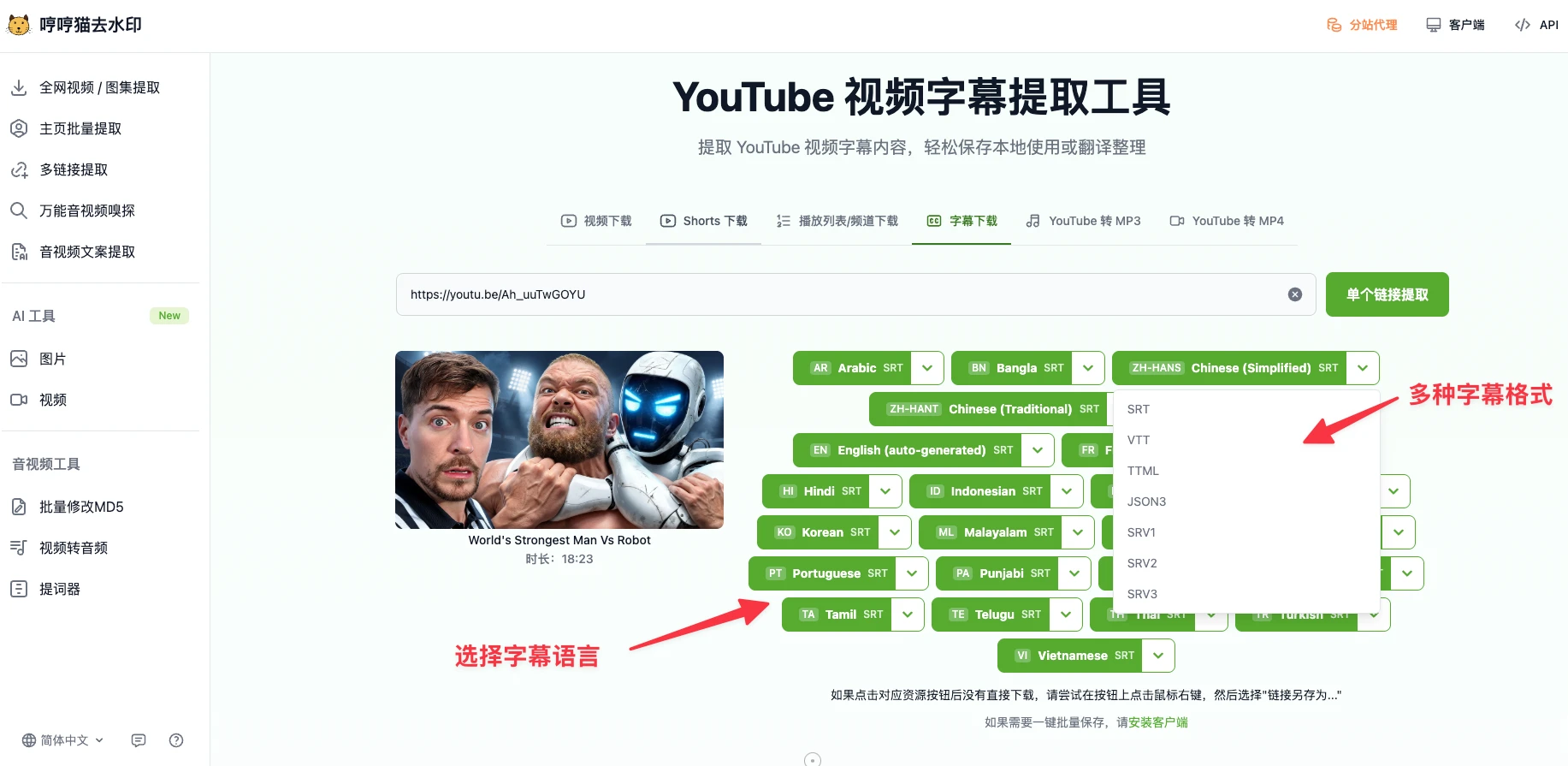
Supported Subtitle Formats
| Format | Description | Use Cases |
|---|---|---|
| SRT | Most universal subtitle format | Video editing software, media players, subtitle translation tools |
| VTT | Standard web video subtitle format | Web players, HTML5 video |
| TTML | Timed Text Markup Language | Professional video production, broadcasting |
| JSON3 | Subtitle data in JSON format | Developers, data analysis, programmatic use |
| SRV1/SRV2/SRV3 | YouTube's native subtitle formats | Special requirements, format research |
Method 2 Highlights
- Rich format options: Supports SRT/VTT/TTML/JSON3/SRV1/SRV2/SRV3 and more
- No installation required: Works in the browser and is accessible from any device
FAQ
Q: What if the video doesn't have subtitles?
A: Some videos may not have uploaded subtitles, in which case no subtitle option will appear in the extraction results. You can check whether the video has auto-generated subtitles available.
Q: Are the downloaded subtitles bilingual (e.g., Chinese and English)?
A: Each download contains a single language. If you need bilingual subtitles, download both languages separately and merge them using a subtitle editing tool.
Q: How do I use the subtitle files?
A: Downloaded SRT subtitles can be loaded in video players (such as VLC or PotPlayer) or imported into video editing software (such as Premiere Pro or CapCut).