On this page
Download YouTube Videos Using the MeowLoad Browser Extension
Background
When using the desktop client to download YouTube videos, some users have reported encountering 403 errors. This is typically caused by network restrictions or YouTube's anti-bot mechanisms.
Using the MeowLoad browser extension can effectively bypass these restrictions and provide a more stable download experience. Additionally, the browser extension method also supports downloading age-restricted videos and region-restricted videos.
How to Download YouTube Videos with the Browser Extension
1️⃣ Install the Browser Extension
If you haven't installed the MeowLoad extension yet, follow the installation guide first.
2️⃣ Navigate to a YouTube Video
Open the YouTube video page you want to download in your browser as you normally would.
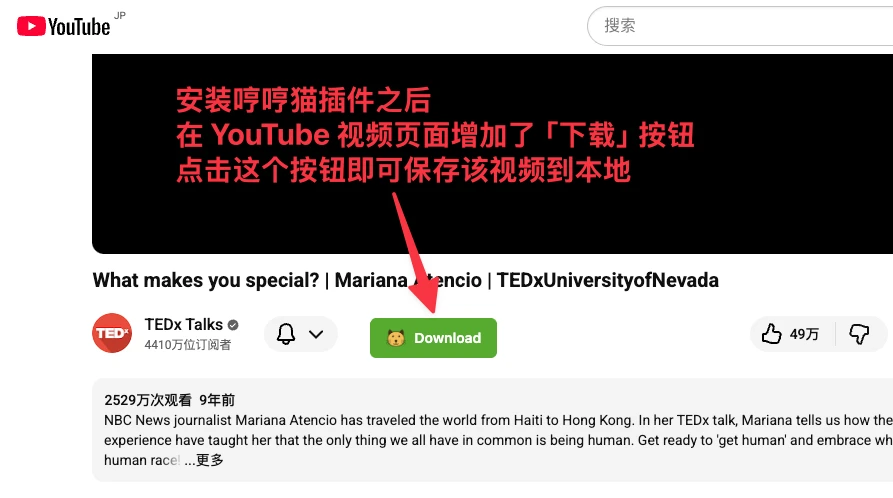
3️⃣ Click the Download Button
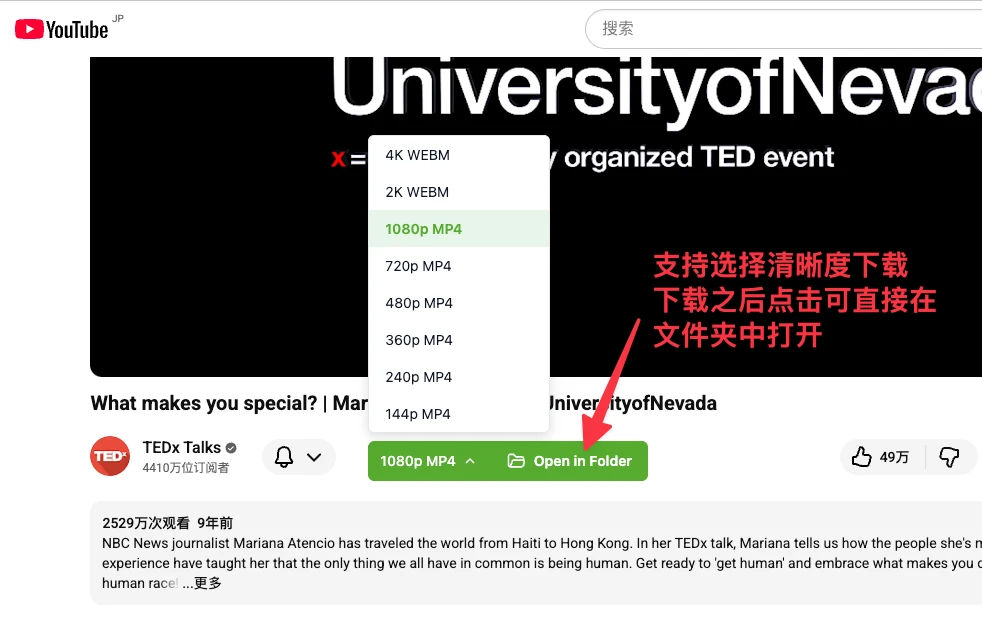
Once the video page has finished loading, you'll see the MeowLoad extension's download button. Click the download button → select the video quality and format → confirm the download.
4️⃣ Wait for the Download to Complete
The extension will automatically save the video to the download folder you configured in the browser extension settings.
FAQ
❓ The downloaded video won't play
Cause: Your browser or system may be missing the required video codecs.
Solutions:
- Make sure you selected the MP4 format (most compatible)
- Install a full set of video codecs on your system
- Try opening the file with a different video player
❓ I can't find the download button
Cause: The extension may not have loaded properly, or the page needs to be refreshed.
Solutions:
- Refresh the page (F5 or Ctrl+R)
- Check that the extension is enabled (in your browser's extension manager)
- Try restarting the browser
- Update the extension to the latest version