On this page
How to Record Twitch Live Streams?
Twitch is the world's largest gaming live-streaming platform, home to an enormous amount of exciting live content from countless streamers. If you want to record your favorite live streams for later viewing, MeowLoad makes real-time recording effortless. In just two steps, you can save an ongoing live stream to your local device.
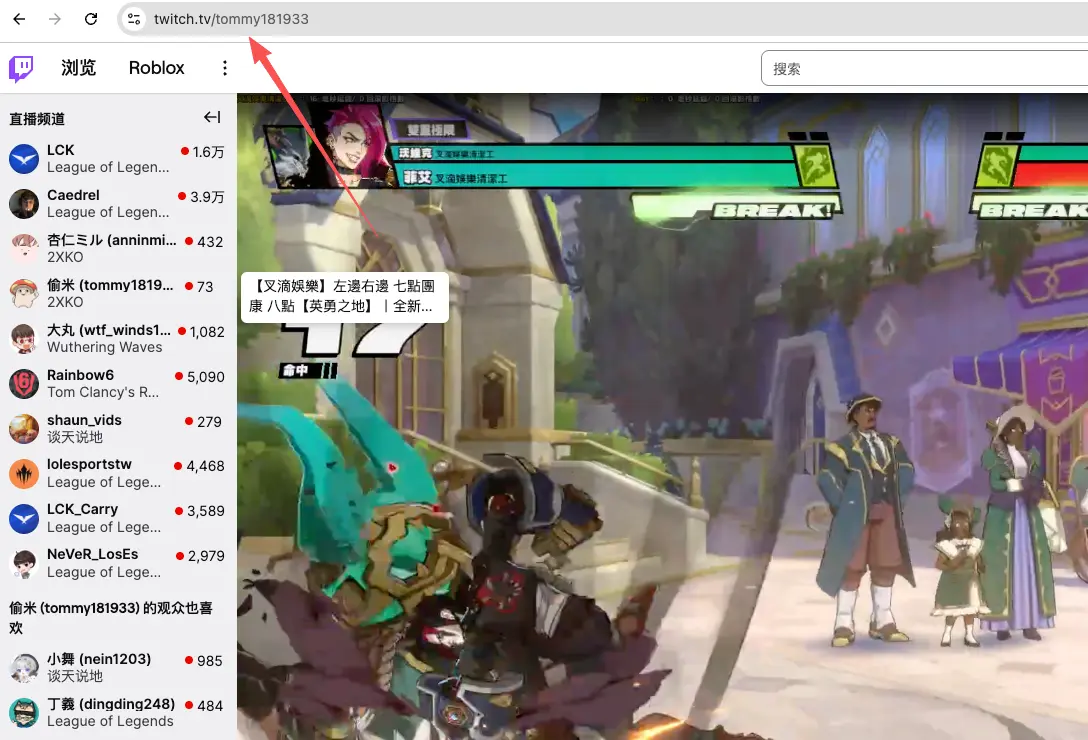
Step 1: Copy the Stream Link
Open the Twitch website and navigate to the live stream you want to record. Copy the full stream URL from your browser's address bar (the format is typically https://www.twitch.tv/streamer-username).
Step 2: Paste the Link and Start Recording
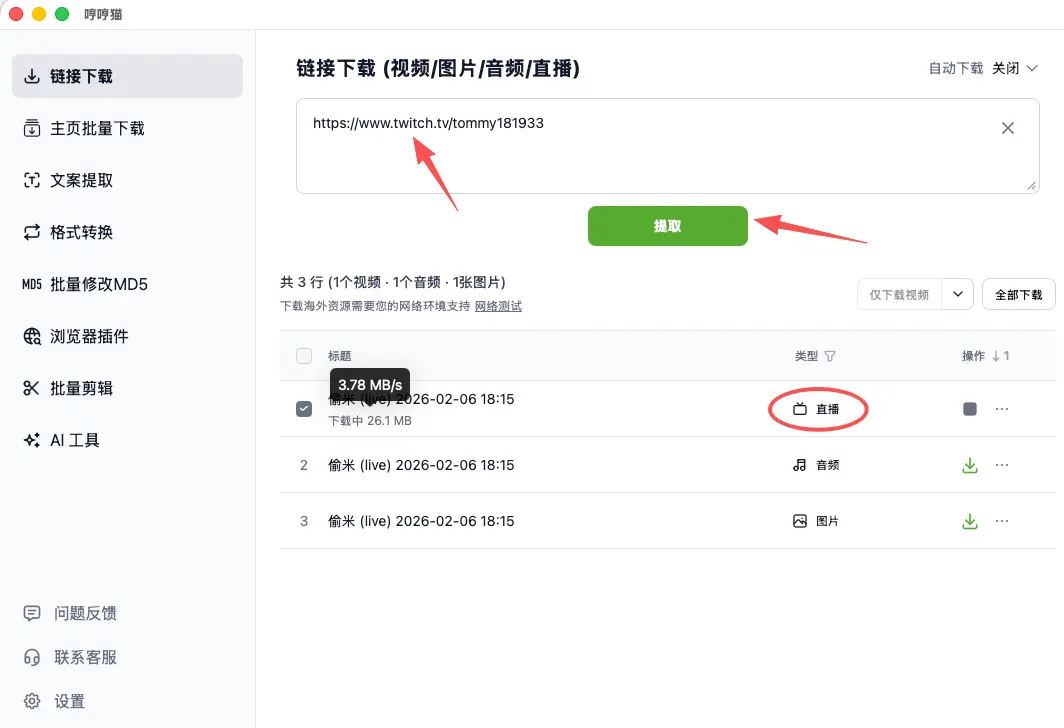
Open MeowLoad and select the "Link Download" feature from the left-side menu. Paste the Twitch link you just copied into the input field and click the green "Extract" button.
The software will automatically parse the live stream content and display the available media files (including the video stream, audio, and thumbnail) in the list below. The first row will show a "Live" status tag, indicating that real-time recording is in progress. You can monitor the download speed and the size of the recorded file in real time.
Tip: The live recording will continue until the streamer ends the broadcast or you stop it manually. The recorded video file will be automatically saved to the download directory configured in the software settings.