On this page
How to Record Kick Live Streams?
This article explains how to use the MeowLoad desktop app to record live streams on Kick, as well as download previously published Kick videos.
Feature Overview
The MeowLoad desktop app supports two ways to capture Kick content:
- Live Recording — Record Kick live streams in real time
- Video Download — Download previously published Kick video content
Both features are accessed through the "Link Download" function, and the workflow is exactly the same.
Step 1: Copy the Kick Link
Recording a Live Stream
Navigate to the Kick live stream you want to record and copy the URL from your browser's address bar:
https://kick.com/[streamer-username]
For example: https://kick.com/jupi
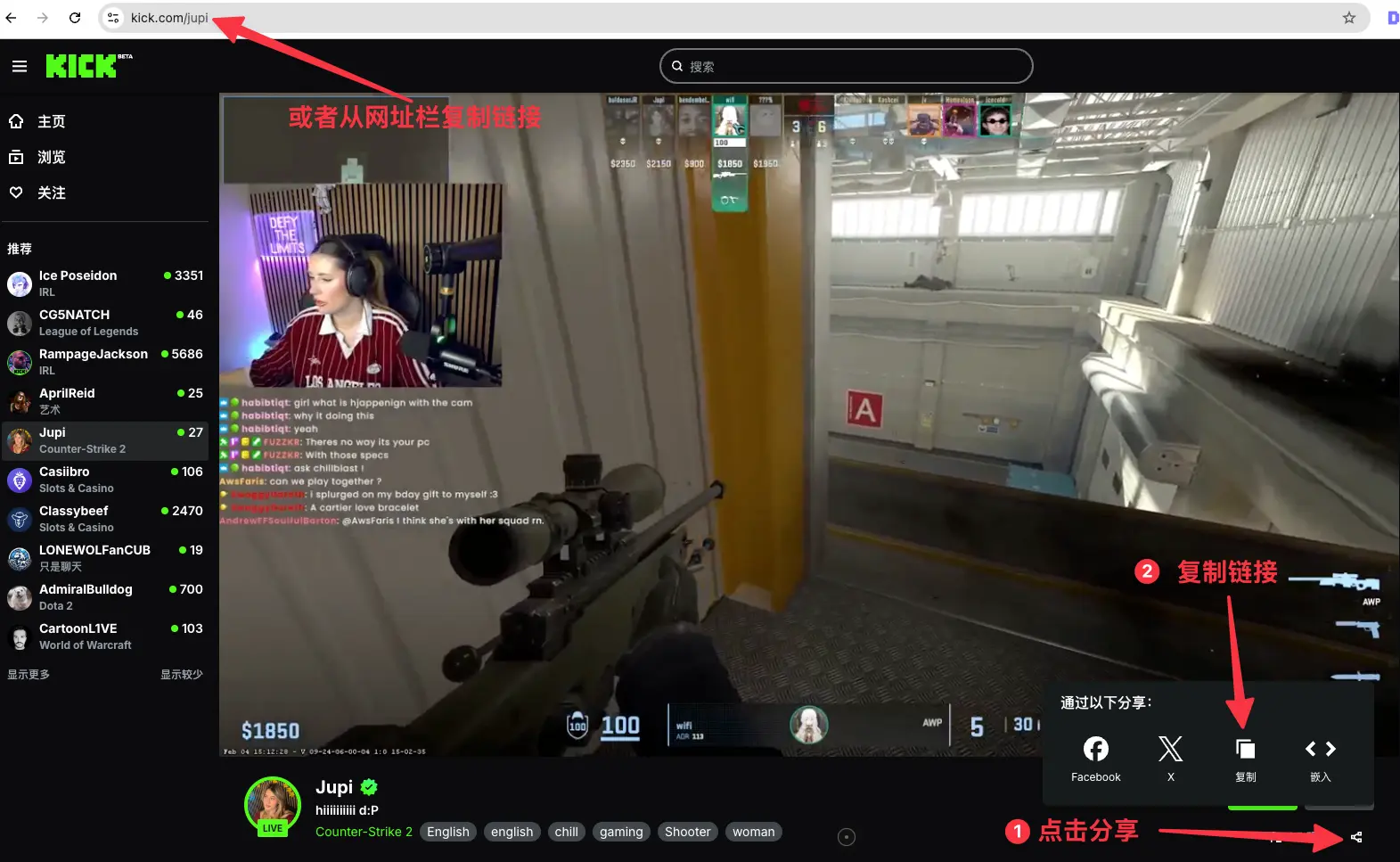
Tips:
- Click the "Copy link" button to quickly copy the stream URL
- Or copy the entire URL directly from the address bar
Downloading a Published Video
Navigate to a video on the Kick platform and copy the video page URL:
https://kick.com/[streamer-username]/videos/[video-ID]
For example: https://kick.com/jeff-jian-57/videos/4ef3e6bc-d963-4a04-8b3a-dd0cc0c66f89
The process is the same as for live recording.
Step 2: Paste the Link and Get Started
Open MeowLoad and go to the "Link Download" feature:
- Paste the link — Paste the copied Kick URL into the text field
- Extract stream info — Click the "Extract" button and the software will automatically parse the link
- Start recording/downloading — Click the "Start Recording" button to begin real-time recording or video download
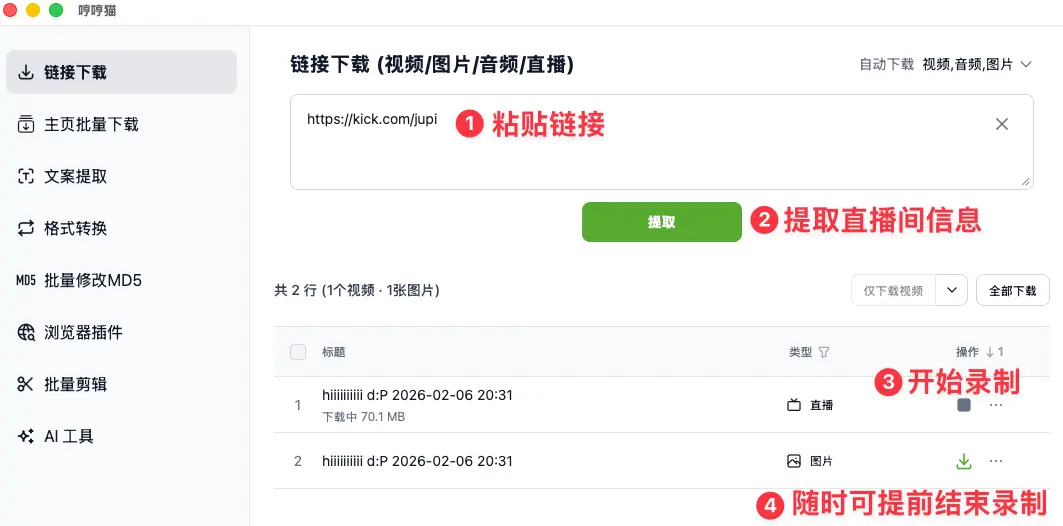
The software will automatically display:
- Live stream info (for recording) or video info (for downloading)
- Extracted results including video stream, audio stream, and thumbnail
- Real-time download progress
Usage Tips
| Item | Description |
|---|---|
| Live Recording | Records an ongoing live stream in real time; you can stop at any time |
| Video Download | Downloads a published video, usually at faster speeds |
| Save Location | All files are saved by default to the download folder configured in the software settings |
| File Format | Automatically downloads the highest quality video and audio available |
| Network Requirements | A stable internet connection is required; a wired connection is recommended |
FAQ
Q: Can I record multiple live streams at the same time?
A: MeowLoad supports batch processing — you can add multiple links to the queue and process them sequentially.
Q: Is there a time limit for live recording?
A: There is no time limit. You can record continuously until the stream ends or you stop it manually.
Q: Where are the downloaded files saved?
A: All downloaded files are saved in MeowLoad's download folder. You can view or change the save location in the software settings.