On this page
How to Keep Downloaded Files in Order During Batch Downloads
When batch downloading files, keeping them in order is important for organizing and reviewing them later. MeowLoad provides two ways to maintain the download order.
Method 1: Sort by Last Modified Time (Default)
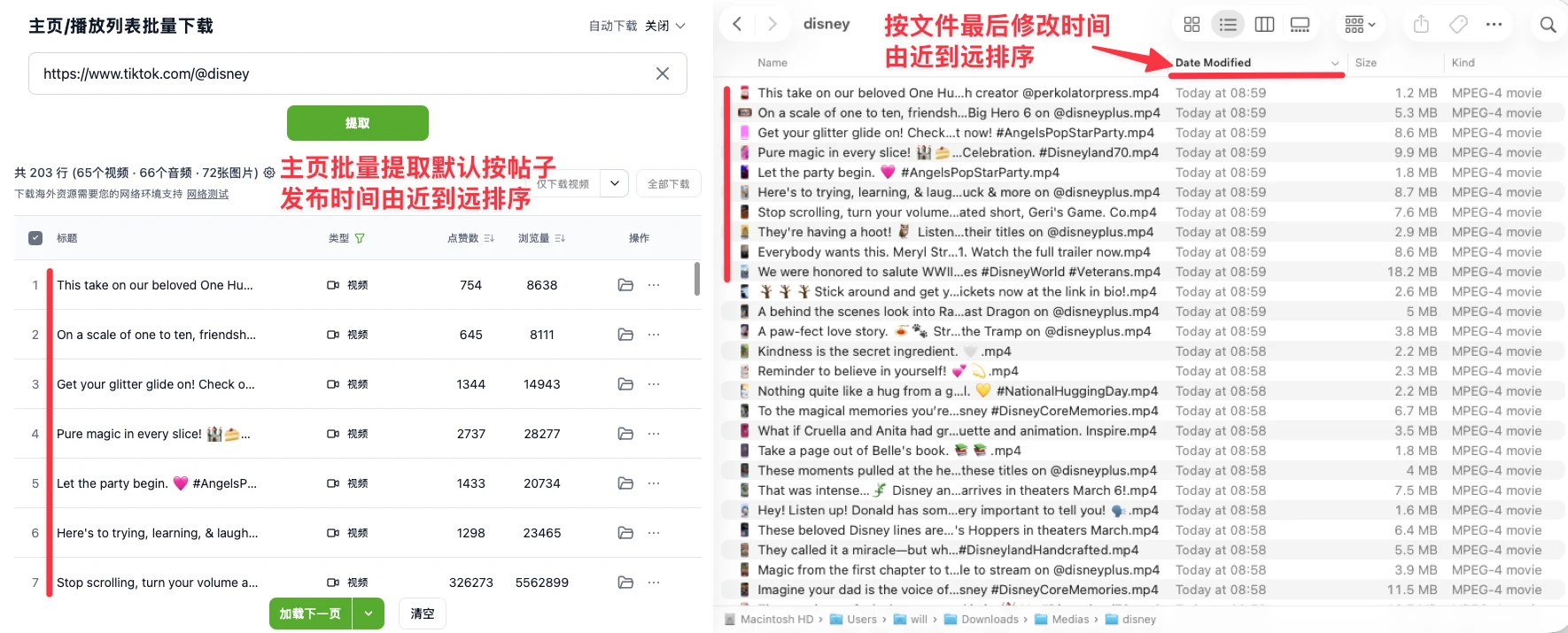
No configuration needed. When you batch download files, MeowLoad automatically sets each file's modification time based on its position in the extraction results table. Simply sort by "Last Modified" (newest first) in your file explorer, and the files will appear in the same order as the extraction results table (which defaults to newest posts first).
Method 2: Add Sequence Numbers to Filenames
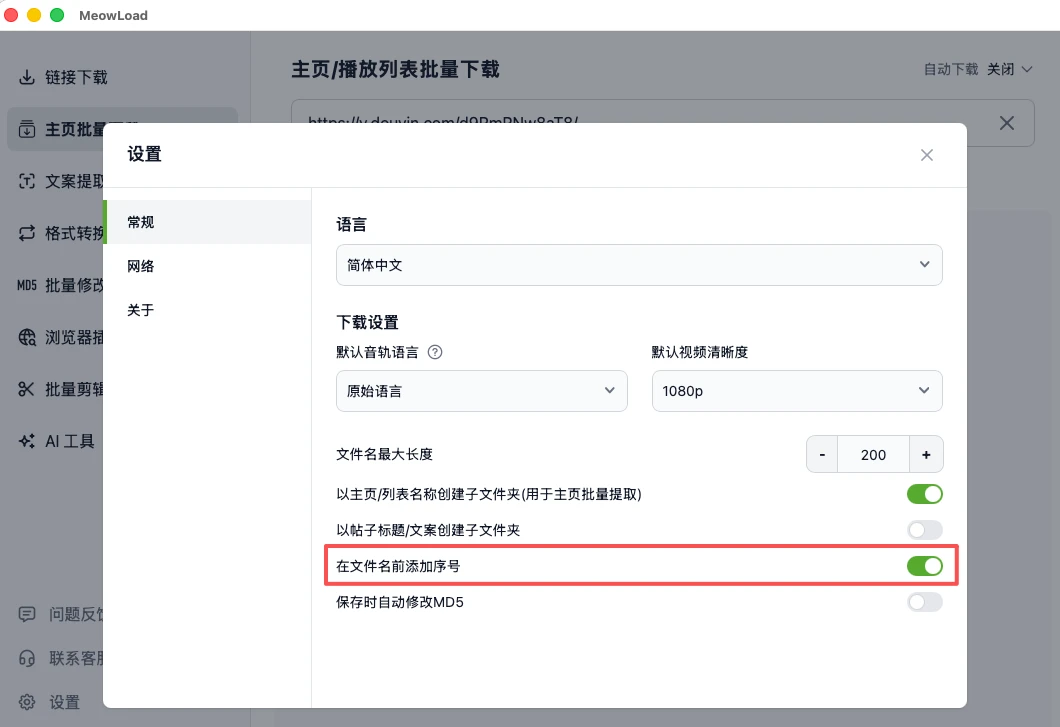
If you enable "Add sequence number to filename" in the app settings, each downloaded file will automatically be prefixed with a sequence number (corresponding to its position in the extraction results table). After the download completes, you can simply sort by filename.
💡 FAQ: Why Are Sequence Numbers Not Consecutive When Using "Download Videos Only"?
Reason: The sequence numbers correspond to each resource's position in the full extraction results table. When you click "Download Videos Only," the table still contains other resource types (audio, images, subtitles, etc.), so the video sequence numbers will have gaps.
Solution:
To get consecutive sequence numbers for downloaded videos, follow these steps:
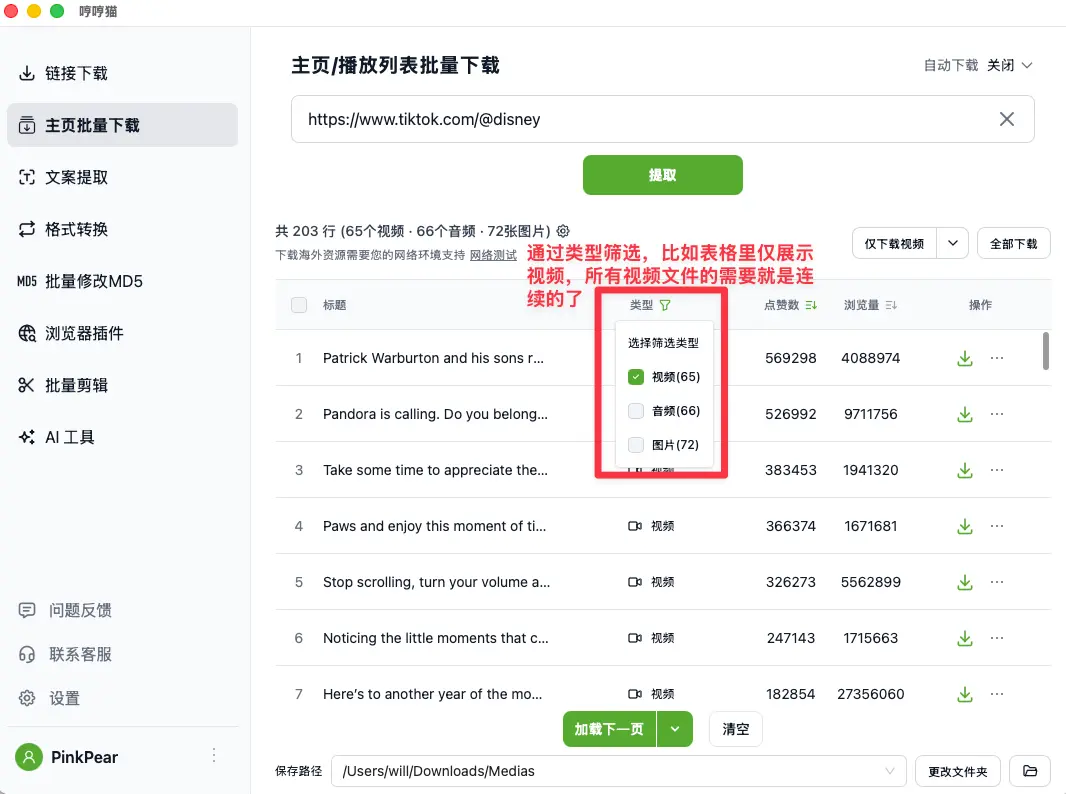
- In the extraction results table, use the "Filter by Type" feature
- Select to show only videos
- After filtering, the videos in the table will have consecutive sequence numbers
- Click "Download All" — the downloaded video files will now have consecutive sequence numbers