On this page
How to Fix Network Errors When Downloading YouTube Videos?
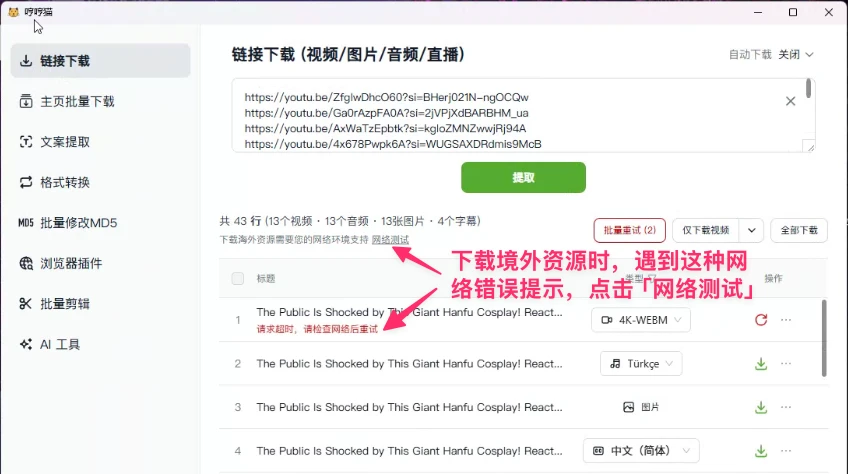
When using MeowLoad desktop app to download videos from YouTube, Instagram, Twitter, or other platforms, you may occasionally encounter error messages such as:
- Request timeout
- Network connection error
- Connection timed out
These errors are typically caused by network connectivity issues between your computer and the target website. Follow the steps below to diagnose and resolve the problem.
Step 1: Run the Network Test
On the download page, click the "Network Test" link next to the error message. The app will automatically open the "Settings - Network" page and test your network connectivity to major websites.
Step 2: Check the Test Results
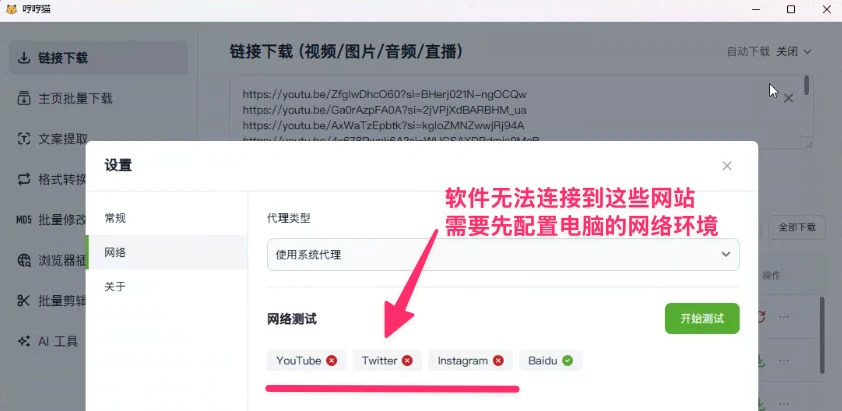
In the "Network" tab of the Settings page, click the "Start Test" button. The app will test connectivity to YouTube, Twitter, Instagram, Baidu, and other websites one by one.
- ✅ means the connection is successful
- ❌ means the connection failed
If any website shows ❌, it means your current network cannot reach that site. You may need to check your network settings or configure a proxy.
Step 3: Check Your Network and Proxy Settings
MeowLoad uses "System Proxy" mode by default, which means it follows your operating system's proxy configuration. If you use a proxy or VPN, make sure:
- Your proxy or VPN software is running and the connection is active
- System proxy mode is enabled, so MeowLoad can route traffic through it
- After adjusting your settings, go back to the Network Test page and click "Start Test" again to confirm all websites show ✅
Tip: If the test still fails with your proxy enabled, try switching to a different server/node in your proxy software, or verify that your proxy is working by opening YouTube in your browser.
Still Getting Download Errors After Fixing Network?
- Make sure your proxy is set to system proxy mode (not app-specific or split-tunneling only)
- Try switching to a different proxy server or node
- Verify your proxy works by opening YouTube directly in your browser
- Check if your firewall or antivirus software is blocking MeowLoad's network access